Mirror your device/computer screen to projector
“Mirroring screen” is also called “Duplicate”, or screen sharing, and allows projector to show what is displayed on your computer/or device screen. Then you can open patterns on your computer or device and they will also show up in the projected image.
Connection between projector and computer/device can be done either by:
- HDMI cable
- the wifi feature available on many mini projectors
- or by a Chromecast or other casting device (Firestick, Roku or Apple TV for example) which connects to projector’s HDMI port and makes any projector wireless. For help understanding wireless protocols and choosing a casting device, see the info on this page: Wireless connections to a projector.
No projector can screen mirror via Bluetooth. Bluetooth capability on projectors is for sound only.
Before connecting, choose a connection method, then follow steps further down the page for that connection type:
Once you have your projector, before setting it up, connect it to the computer/device you will be projecting from.
“Mirroring screen” is also called “Duplicate”, or screen sharing, and allows projector to show what is displayed on your computer/or device screen. Then you can open patterns on your computer or device and they will also show up in the projected image.
Connection between projector and computer/device can be done either by:
- HDMI cable
- the wifi feature available on many mini projectors
- or by a Chromecast or other casting device (Firestick, Roku or Apple TV for example) which connects to projector’s HDMI port and makes any projector wireless. For help understanding wireless protocols and choosing a casting device, see the info on this page: Wireless connections to a projector.
No projector can screen mirror via Bluetooth. Bluetooth capability on projectors is for sound only.
Before connecting, choose a connection method, then follow steps further down the page for that connection type:
Before connecting, choose a connection method, then follow steps further down the page for that connection type:
| Connection | Best for | Tips |
|---|---|---|
| HDMI cable | Everything. The simplest and most reliable option, and the best choice with ultra short throw projectors such as Epsons because they are so close, so only a short cable is needed. | You’ll need to get long HDMI cable if connecting to mini projector, the one that comes in box is too short. If connecting to a Mac, ios device or tablet, a USB-C to HDMI adaptor will be needed, or USB-C to HDMI cable. |
| Built-in Wi-Fi of a mini projector (most mini projector models have it) | Almost all devices can be connected this way: Windows, Mac, Android and iPhone/iPad, Exception is Chromebooks and Pixel phones – they need a chromecast device. | Can freeze or lag, especially with a distant router or a high-resolution screen. But most people don’t experience these issues. |
| Chromecast added to the projector’s HDMI port | Windows, Mac, Android, Chromebook, Google Pixel phones. | iPhones and iPads need a third-party casting app to work with a Chromecast, which require subcription or viewing ads. |
| Anycast, Roku or other casting device that supports Miracast (Windows/Android and Airplay (Mac/iOS) added to the HDMI port. | Almost all devices can be connected this way: Windows, Mac, Android and iPhone/iPad, Exception is Chromebooks and Pixel phones – they need a chromecast device. | A Fire Stick has no AirPlay, so it will not mirror a Mac, iPhone or iPad. But Firestick has Miracast, so will connect to Windows and Android |
The steps for each type of connection are listed here – tap header to see info for each:
Connecting by HDMI cable is simplest and most reliable option. It works for computers, or mobile devices (phones or tablets). It works especially well with UST (ultra short throw) projectors like Epsons, because they are set up so close to table. A 10 foot HDMI cable is often sufficient. Any HDMI cable will work, no need for higher resolution or more expensive ones.
Some computers or devices may need an HDMI cable or adaptor that connects to port on their device, for example:
- a newer Mac, iPad or iPhone and many android devices will need a USB C to HDMI cable, or USB C to HDMI adaptor and HDMI cable.
- an older iPhone or iPad will need a Lightning to HDMI cable, or Lightning to HDMI adaptor and HDMI cable.
- An older Mac will need a mini-display/Thunderbolt to HDMI adaptor and HDMI cable.
Once you have projector and computer/device connected by HDMI cable, follow these steps to mirror your screen:
1. Make sure Source menu on projector is set to HDMI. This will be different method on different projectors. On Epson projectors, press source button on projector or remote. On mini projectors, choose HDMI in the main menu screen:
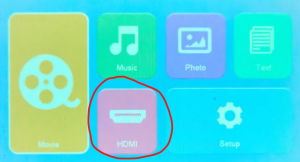
2. Mirror device, with these settings:
On Mac, mirroring usually happens automatically. If it doesn’t go in System Preferences > Displays, and then put projector on Mirror mode.
On Windows:
Windows Key and P
Duplicate
On phones and tablets, HDMI cable will automatically mirror device screen to projector (once projector source is on HDMI) (Exception: Google phones will not work natively with HDMI cable, they need HDMI port hub to mirror projection, more info here.)
Adding more textAdding more textAdding more textAdding more textAdding more textAdding more textAdding more textAdding more textAdding more textAdding more textAdding more textAdding more textAdding more textAdding more textAdding more textAdding more textAdding more textAdding more textAdding more textAdding more textAdding more textAdding more textAdding more textAdding more text
Adding more text
Adding more textAdding more text
Adding more text
Adding more textAdding more text
Adding more text
Adding more text
Adding more text
Adding more text