Use built-in Wi-Fi of a mini projector to mirror your device/computer screen to projector
Once you have your projector, before setting it up, connect it to the computer/device you will be projecting from.
“Mirroring screen” is also called “Duplicate”, or screen sharing, and allows projector to show what is displayed on your computer/or device screen. Then you can open patterns on your computer or device and they will also show up in the projected image.
Connecting projector via wifi capabilities of a mini projector
For wireless connections in mini projectors that have that option, they can connect to most mobile devices and computers with the following steps. Keep in mind wireless capabilities of projectors can sometimes be flaky/unreliable, especially if wifi router is far from projector, or if computer/device has very high resolution. Connecting by cable or chromecast/apple tv or other casting device, is more reliable if problems occur with wireless feature of projector. There is also a solution for using wireless connection on mini projectors if it freezes: Using extended mode to fix screen freezing issues when casting wirelessly from mini projectors.
To connect via wireless capability of projector:
- Follow instructions in manual to connect the projector to your home wifi network.
- On the Yoton projector, the screen to type the wifi password has an odd looking enter button on right side with an arrow. Select that button after typing the password to your wifi network.
- On Magcubic projector, select “Settings” on main menu screen and then “Network settings”
- Make sure you are connecting projector to same network as you will be using with your device/computer, not a different band or variation on the network name. (Some older projectors will not work on 5ghz band of a router, unless they were sold as “5G”. Yoton and Magcubic don’t have this problem they are 5G compatible.)
2. Follow instructions in manual for screen sharing. The projector instructions will only explain how to connect to mobile devices, but the wireless connection works with Windows or Mac computers as well. (They don’t explain those steps because they don’t want to provide support for connecting to a computer.)
To activate screen sharing on projector:
- One some projectors you will need to select “Screen Mirroring” or “Cast” button on main projector menu first, on projectors with apps you will need to select “Applications” or “Apps” button
- Then for Windows or Android devices select “Android” or “Miracast” or “Miracast Receiver”
- For Mac or iPad/iPhone select “iOS Connect” “iOSCast” “Airpin” or similar.
To open screen sharing panel on computer/device:
For iPhone or iPads: select “iOSCast” or “iOS Connect” or “AirPin” similar button. Then access control centre on iPhone/iPad (swipe diagonally down from upper right corner) and select Screen Mirroring button.
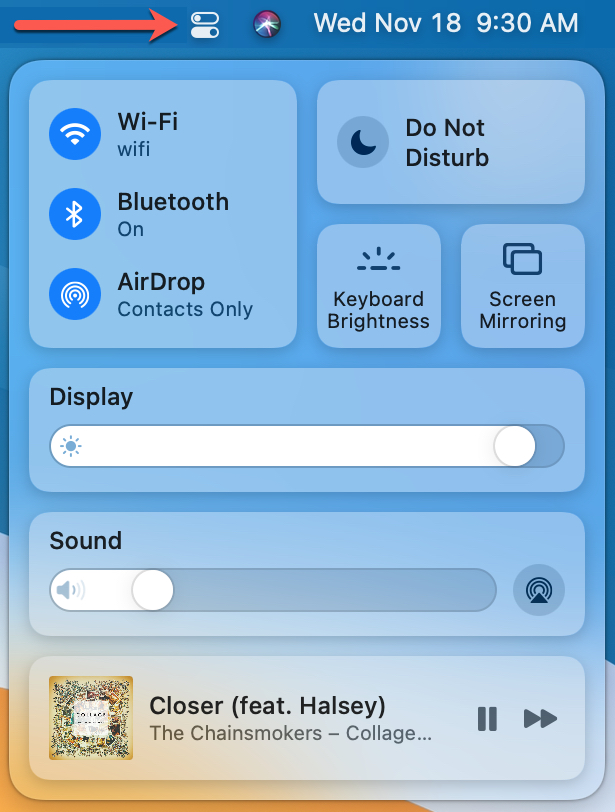
For Macs: select “iOSCast” or “iOS Connect” or “Airpin” or similar button. Then open Control Centre click “Screen Mirroring” and then select projector (may be called “Z-Cast” or “Y3” or “Mag” or similar). (On older Macs, look for TV icon in menu bar, and select that to look for airplay devices.)
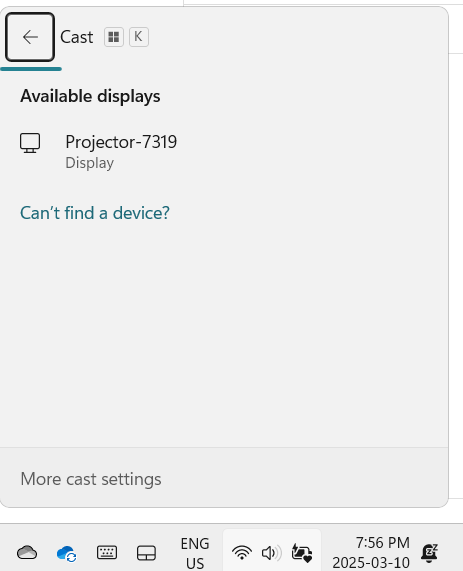
Windows 10/11 setup: press Windows Key and K (think of K for “Cast”). Then in the panel that comes up, select the projector, it may have name such as “Z-Cast”, “Y3”, “Projector-7319” or similar. (If Windows key and K doesn’t bring up panel, your computer may be older and not have wireless display capability.)